Wix Integration
Learn how to install and configure OpenSpeechAI chat widget on your Wix website. Complete step-by-step integration guide.
What You'll Need
Before starting the installation, make sure you have:
Requirements
- Active Wix website with a Premium plan (required for custom code)
- OpenSpeechAI account with a configured agent
- Access to your Wix site's Settings panel
Important
Wix free plans do not support custom code. You'll need to upgrade to a Premium plan to add the chat widget. Any paid plan (Light, Core, Business, or Business Elite) will work.
Get Your Widget Script
Before you can install the widget on Wix, you need to get your unique widget script from the OpenSpeechAI dashboard. This script connects the chat interface on your site to your configured AI agent.
Make sure you've already created an agent and connected a knowledge base (if needed). The widget won't work without an active agent.
To get your widget script:
- Log in to your OpenSpeechAI dashboard
- Navigate to Agents and select your agent
- Click the Widget tab at the top
- You'll see your unique installation code
- Click Copy to copy it to your clipboard
The code looks like this:
<script
  src="https://widget.openspeechai.com/widgets/chat-widget.js?widgetId=abc-123"
  defer
  crossorigin="anonymous"
></script>
Keep this code ready - you'll paste it into your Wix site in the next step.
Access Custom Code Settings
Now that you have your widget script copied, you need to add it to your Wix site using the Custom Code feature. This setting allows you to add scripts that load on all pages.
- Log in to your Wix account and open your site's dashboard
- In the left sidebar, scroll down and click Settings
- Under the Settings menu, find and click Custom Code
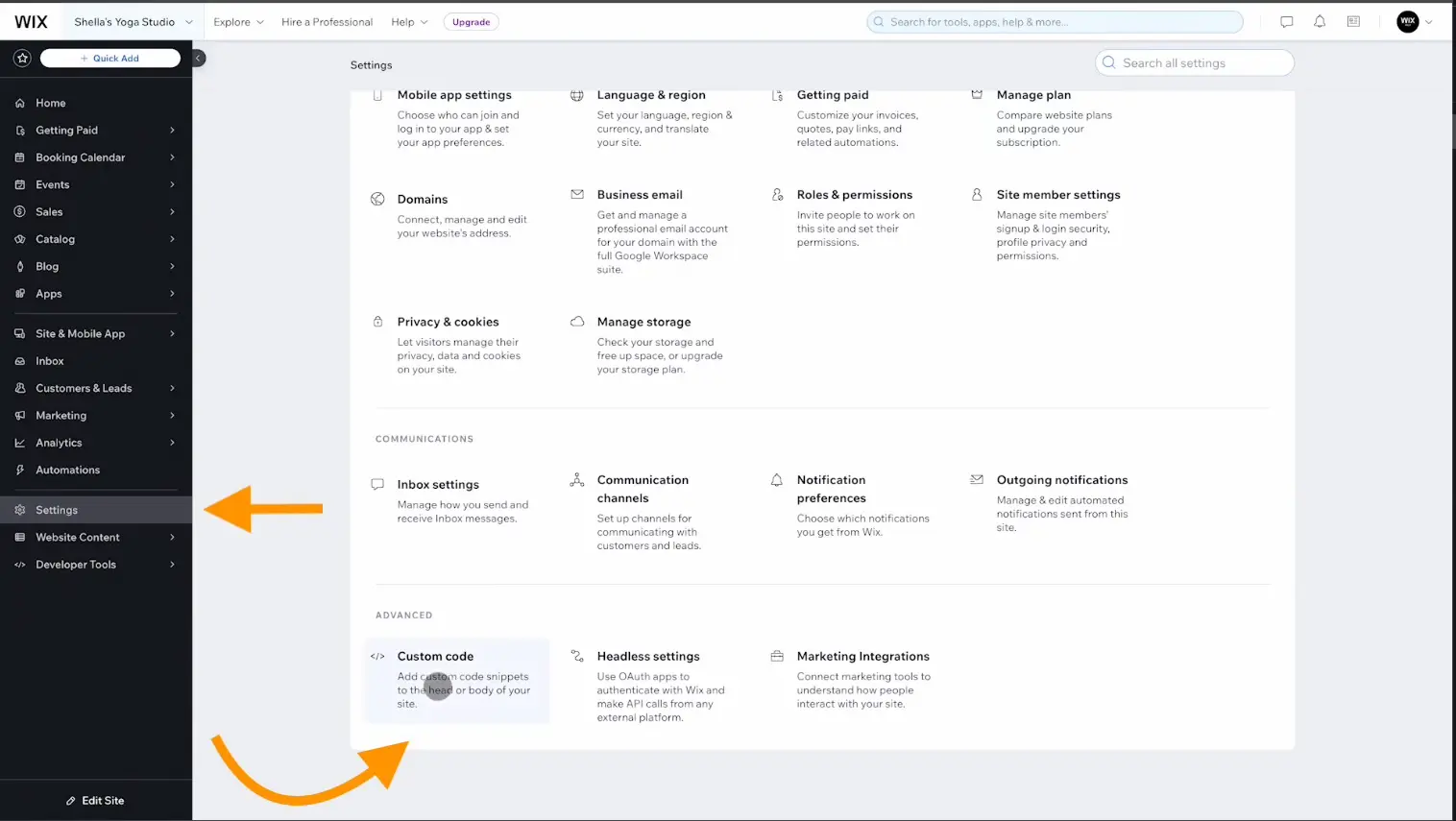
In the next step, you'll add your widget script here.
Add the Widget Script
In the Custom Code panel, you'll add your OpenSpeechAI widget script so it loads on every page of your site.
-
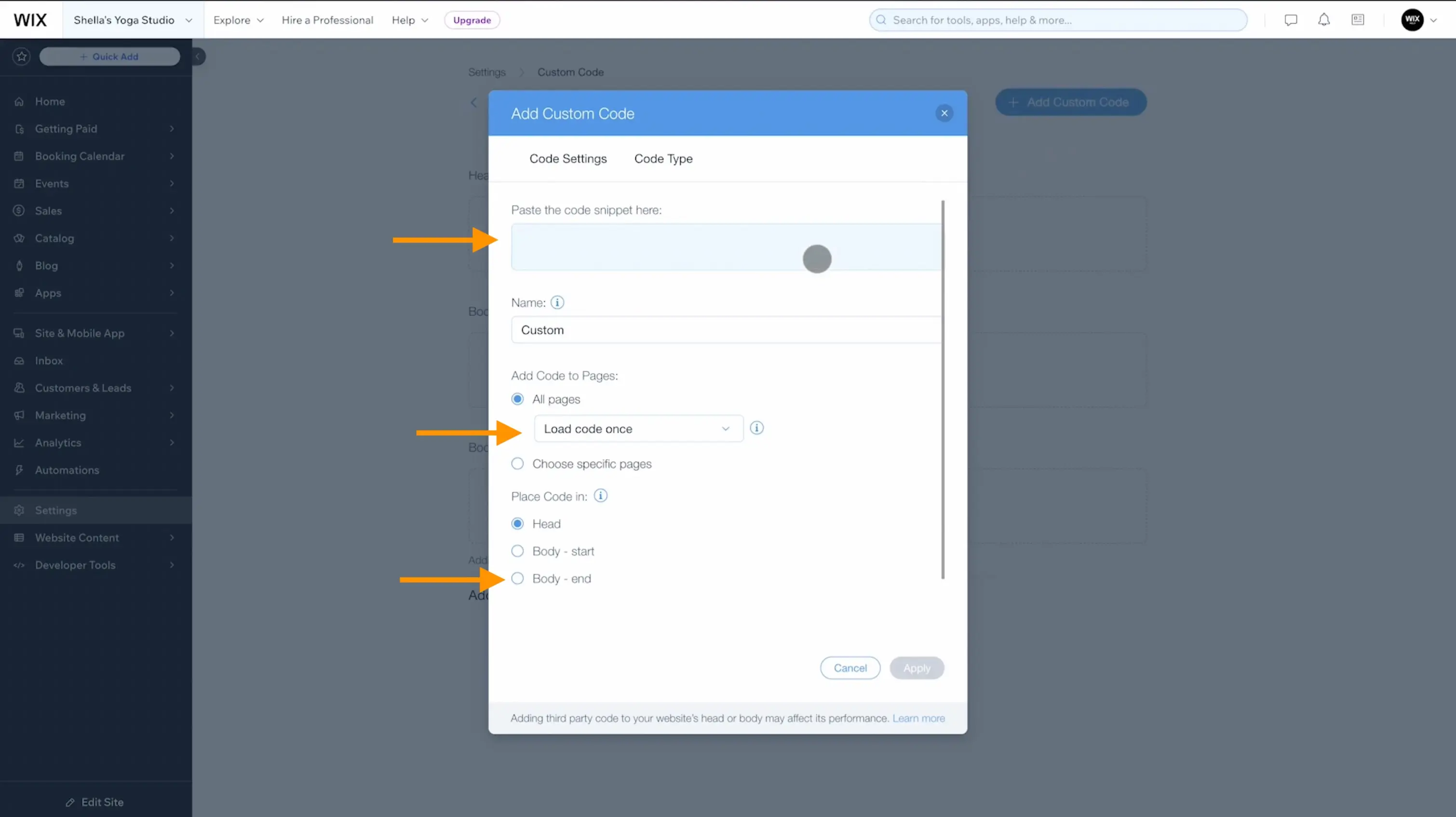
Click the + Add Custom Code button in the top right
-
A modal will appear - paste your widget script in the code input box
-
In the Name field, enter
OpenSpeechAI Widget(this helps you identify it later) -
Under Add Code to Pages, select All pages
-
Under Place Code in, select Body - end
-
Click Apply to save your changes
Important
Selecting "Body - end" ensures your page loads quickly and the widget works correctly. Don't place the script in the Head section.
After clicking Apply, your widget will be active on all pages of your Wix site.
Test Your Installation
Now that you've added the widget script and saved your changes, it's time to verify everything is working correctly.
- Open your Wix site in a new browser tab (visit your live site URL, not the editor)
- You should see the chat widget appear in the bottom-right corner of your page
- Click on the widget to open the chat interface
- Send a test message to verify your agent responds correctly
- Navigate to different pages to confirm the widget appears consistently
If the widget doesn't appear immediately, try clearing your browser cache and refreshing the page:
- Windows/Linux: Press
Ctrl + Shift + R - Mac: Press
Cmd + Shift + R
The widget is now live on all pages of your site and ready to help your visitors 24/7.
Troubleshooting
If you encounter any issues with your widget installation, here are common problems and solutions:
Need help?
If you're still experiencing issues, email us at shri@openspeechai.com with:
- Your Wix site URL
- Screenshot of the issue
- Any error messages from browser console
We're here to help you get up and running!