Form Extension
Collect leads, feedback, and support requests directly in your chat widget using custom forms.
What is the Form Extension?
The Form Extension lets you create custom forms that your AI agent can display during conversations. Instead of asking visitors for information one message at a time, your agent can show a structured form to collect multiple pieces of information at once.
This is useful for collecting contact details, gathering feedback, processing support requests, or capturing any structured data from your visitors. Forms appear directly in the chat widget, making it easy for visitors to submit information without leaving the conversation.
How Forms Work
When you create a form, you give it a name and a description. The description is important because it tells your AI agent when to display the form. For example, if your form description says "Collect contact details when visitors want to get in touch", your agent will automatically show this form when a visitor asks to contact you or requests a callback.
Your agent uses the form description to decide the right moment to display the form. Write clear, specific descriptions so your agent knows exactly when to use each form.
Once a visitor submits a form, the data appears in your Form Submissions page where you can review it, mark it as reviewed, or archive it.
Creating a Form
To create a form, navigate to your agent's detail page and click on the Extensions tab. You'll see available extensions, including the Forms extension.
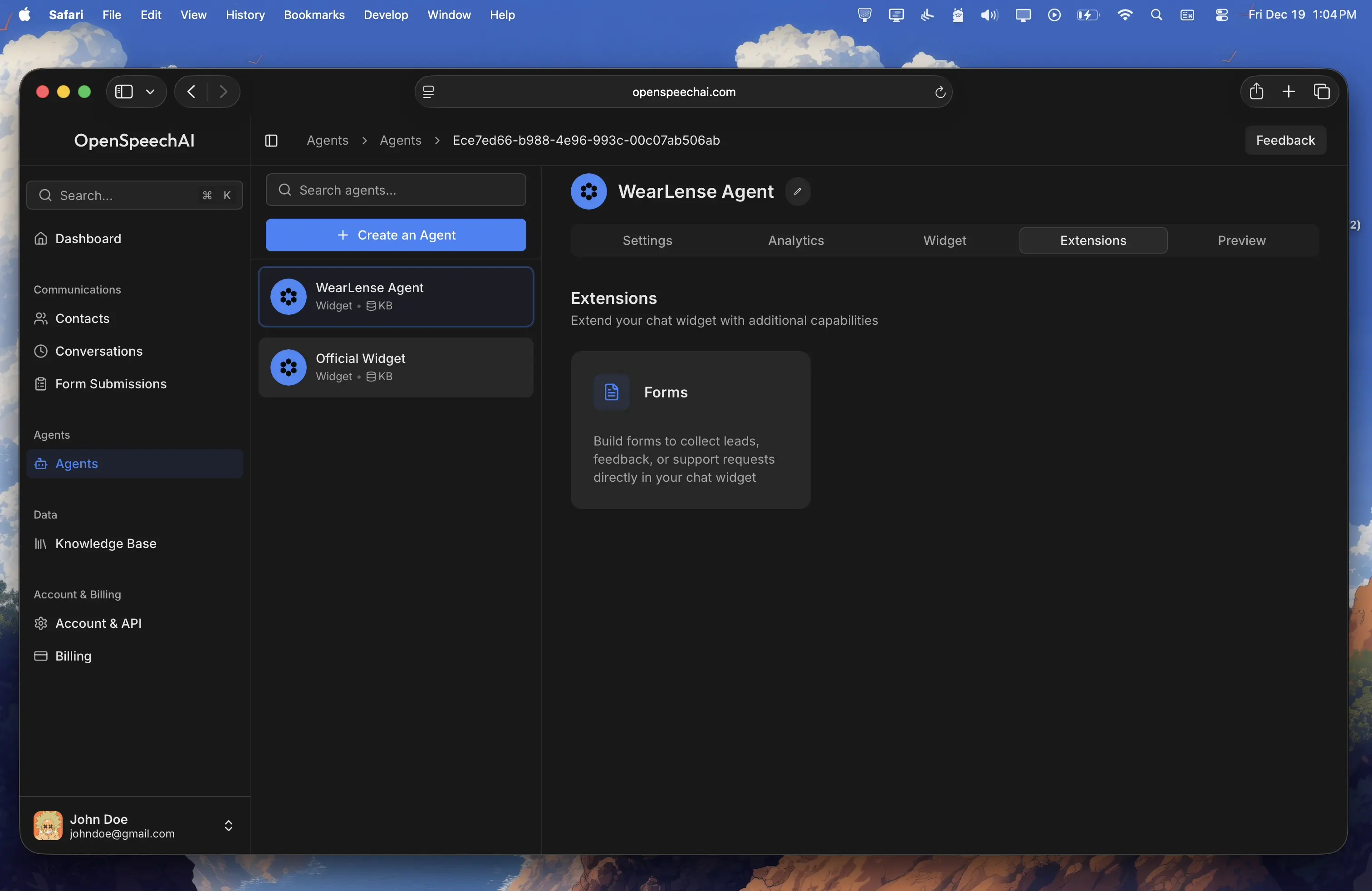
Click on the Forms card to open the form builder. Here you can configure your form with the following fields:
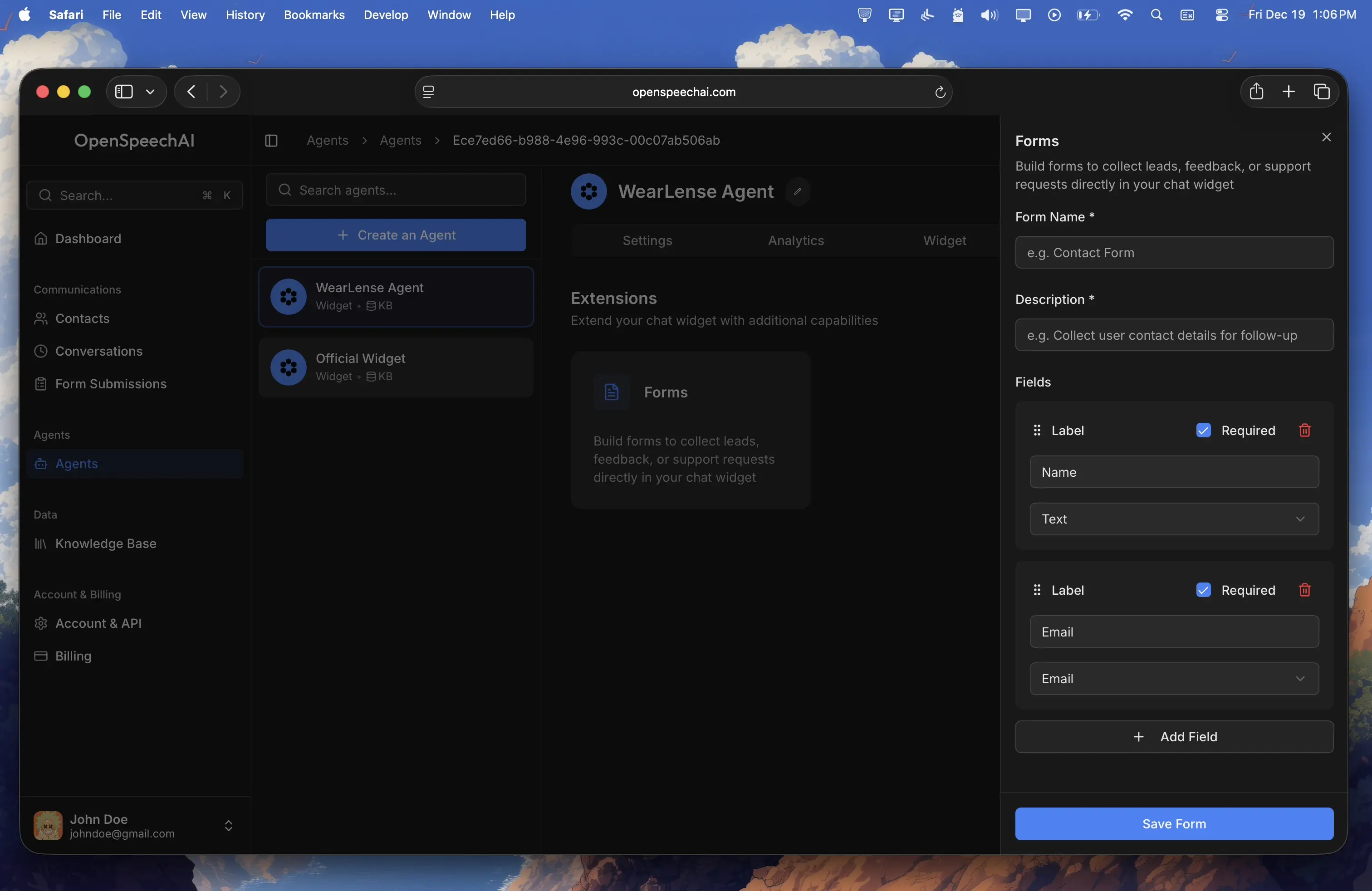
Form Name
Give your form a clear, descriptive name like "Contact Us", "Request a Quote", or "Book a Consultation". This name appears as the form title when displayed to visitors.
Form Description
Write a description that tells your AI agent when to show this form. Be specific about the scenarios where this form should appear. For example:
Example descriptions
- "Collect contact details when visitors want to get in touch, have questions, or need help"
- "Gather prescription information when visitors want to order prescription lenses"
- "Collect booking details when visitors want to schedule an appointment or consultation"
The more specific your description, the better your agent will be at showing the form at the right moment.
Form Fields
Add fields to collect the information you need. Each field has the following properties:
| Property | Description |
|---|---|
| Label | The field name that visitors see (e.g., "Full Name", "Email Address", "Message") |
| Type | The type of input. Available types are: |
| Required | Toggle this on if the field must be filled before submitting. Only mark fields as required if you truly need them. |
| Options (Select fields only) | For select fields, enter the options separated by commas. For example: "Contact Lenses, Prescription Glasses, Sunglasses, Blue Light Glasses" |
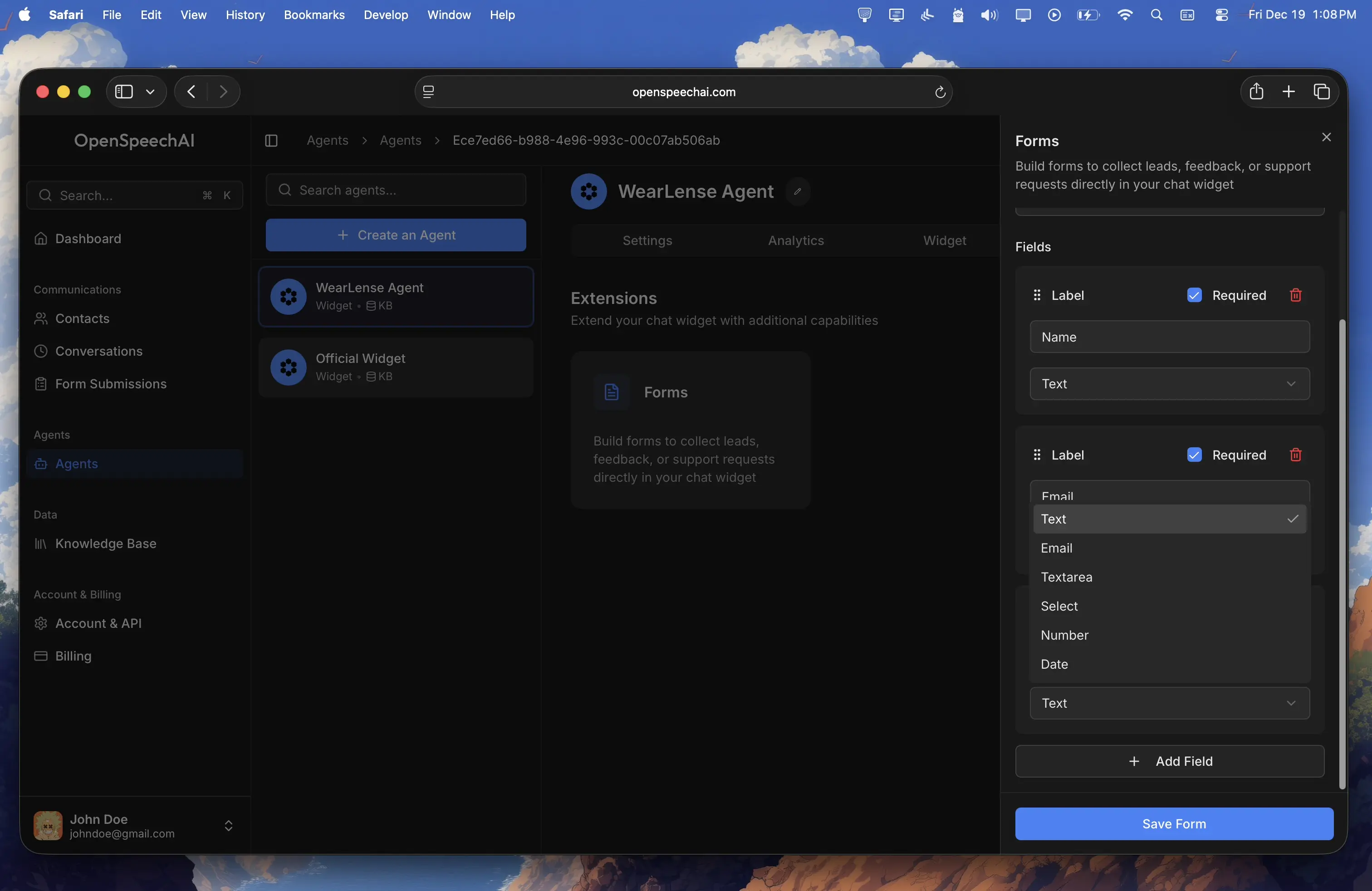
| Type | Description | Best For |
|---|---|---|
| Text | Single line text input | Names, phone numbers, short answers |
| Email input with validation | Email addresses | |
| Textarea | Multi-line text input | Messages, comments, detailed responses |
| Select | Dropdown with predefined options | Categories, preferences, fixed choices |
| Number | Numeric input | Quantities, ages, ratings |
| Date | Date picker | Appointments, birthdates, deadlines |
Reordering Fields
You can drag and drop fields to reorder them. Grab the handle on the left side of any field and drag it to your preferred position.
Default Fields
When you create a new form, it starts with two default fields: Name (required) and Email (required). You can modify or remove these as needed.
Click Save Form when you're done configuring your form.
Managing Forms
After creating forms, they appear in the Enabled Forms section below the extensions cards on the Extensions tab.
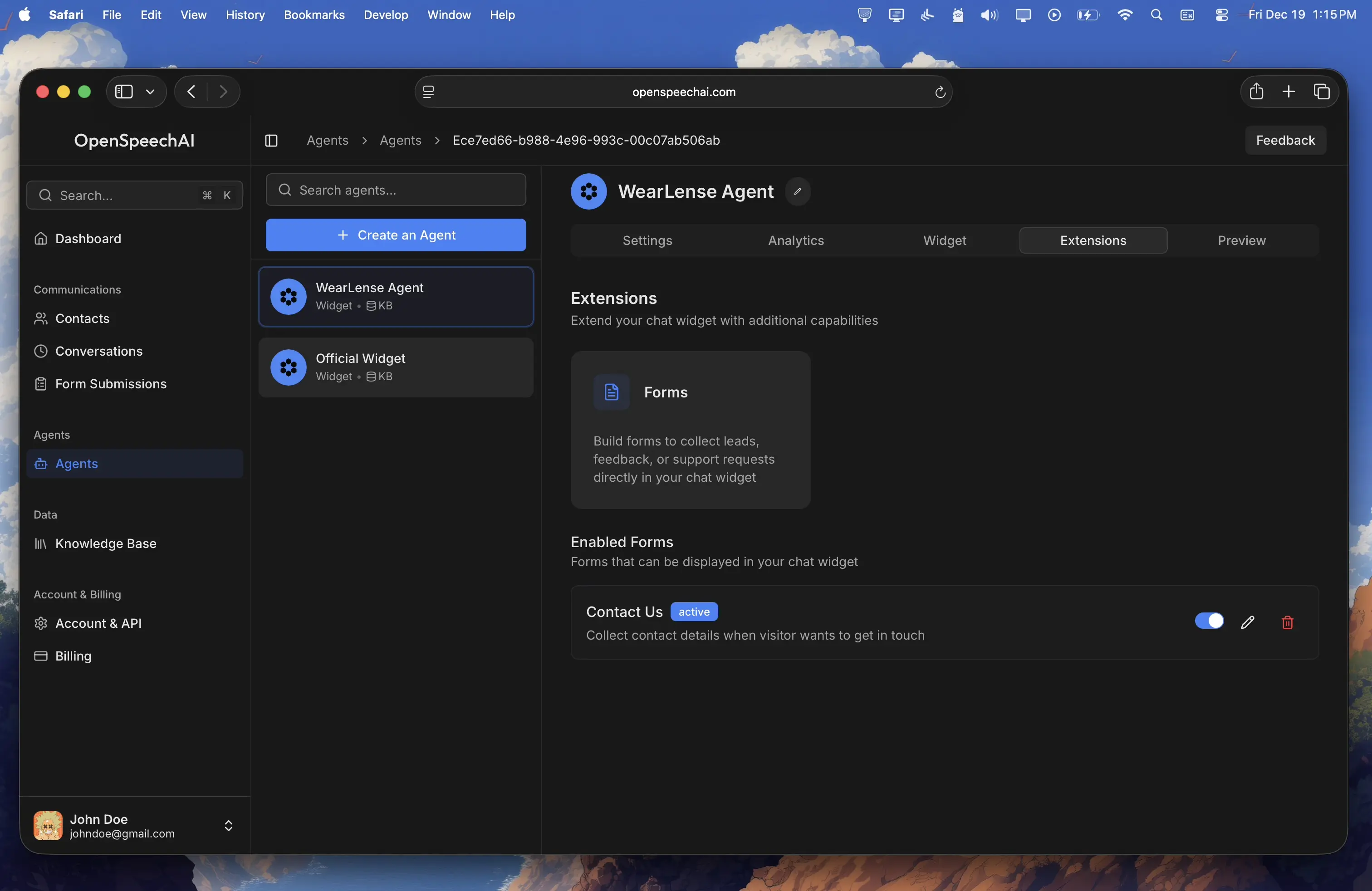
Activating and Deactivating Forms
Each form has a toggle switch to activate or deactivate it. When a form is active, your agent can display it during conversations. When inactive, the form won't be shown to visitors even if the situation matches the form description.
Use this to temporarily disable forms without deleting them, or to prepare forms in advance before making them live.
Editing Forms
Click the pencil icon next to any form to edit it. You can update the name, description, and fields. Changes take effect immediately for new conversations.
Deleting Forms
Click the trash icon to delete a form. This action cannot be undone. Any existing submissions for this form will remain in your Form Submissions page.
Viewing Form Submissions
When visitors submit forms through your chat widget, the data appears on the Form Submissions page in your dashboard.
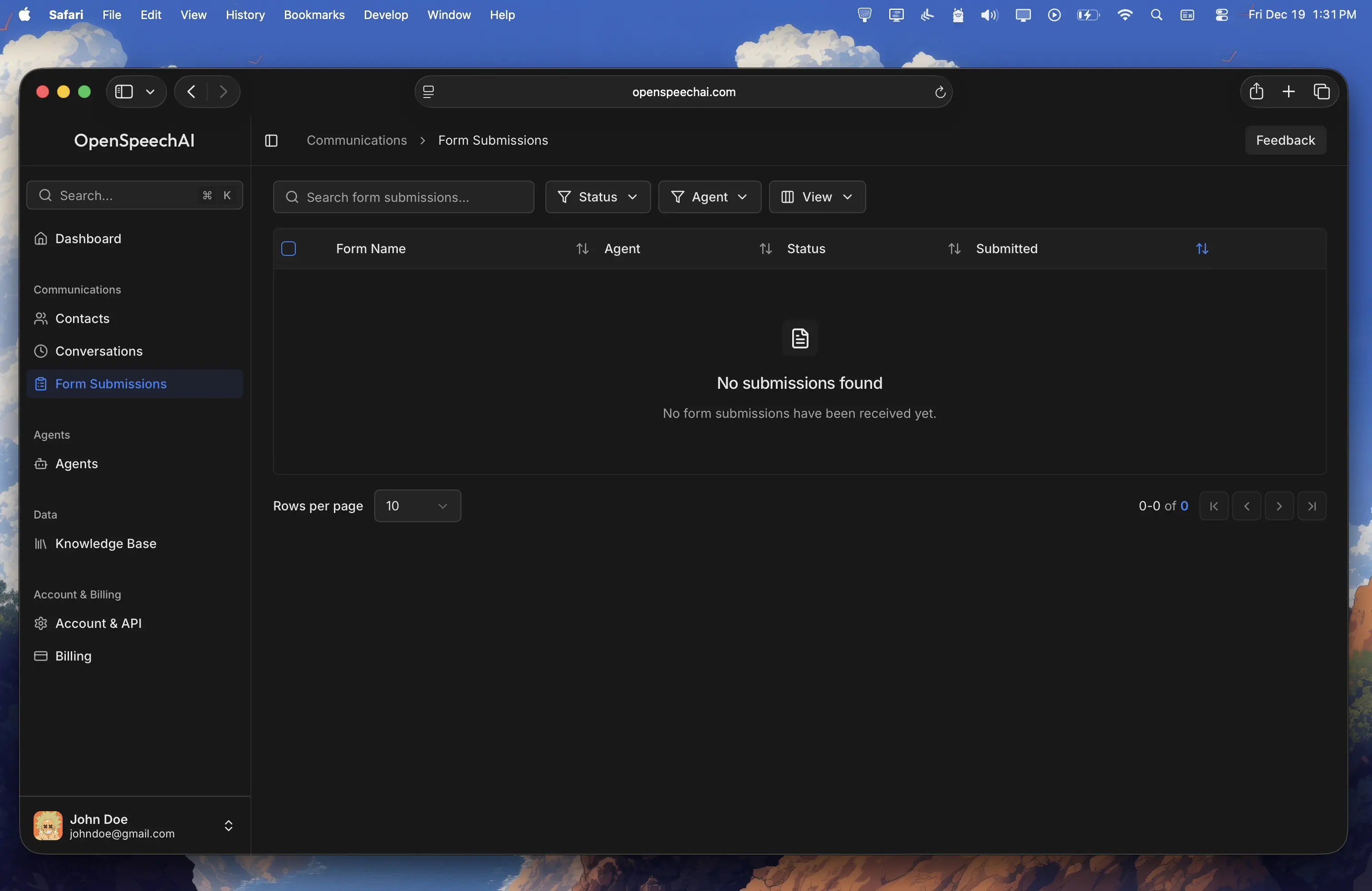
The submissions table shows:
| Column | Description |
|---|---|
| Form name | Which form was submitted |
| Agent | Which agent collected the submission |
| Status | Current status of the submission |
| Submitted | When the form was submitted |
Submission Statuses
Each submission has one of three statuses:
| Status | Description |
|---|---|
| New | Fresh submission that hasn't been reviewed yet |
| Reviewed | You've looked at this submission and marked it as reviewed |
| Archived | Submission has been archived (hidden from default view) |
Viewing Submission Details
Click on any submission to open the detail sheet. This shows all the form data the visitor submitted, along with metadata like the agent name, submission time, and current status.
From the detail sheet, you can:
| Action | Result |
|---|---|
| Mark as Reviewed | Update the status to show you've processed this submission |
| Archive | Move the submission to archived status |
Best Practices
Use clear field labels
Write labels that tell visitors exactly what information you need. "Full Name" is clearer than just "Name".
Write specific descriptions
Your form description determines when the AI shows the form. Vague descriptions lead to forms being shown at wrong moments.
Mark only essential fields as required
Making every field required frustrates visitors. Only require fields you absolutely need.
Use appropriate field types
Use email type for emails (adds validation), textarea for longer responses, and select for fixed options. This improves the user experience and data quality.
Test your forms
After creating a form, use the Preview tab to have a conversation with your agent and verify the form appears at the right moment and works as expected.
Last updated: December 19, 2025
Widget Security
Protect your widget from unauthorized use and control which websites can embed your chat widget using origin whitelisting and security best practices.
Shopify Integration
Learn how to install and configure OpenSpeechAI chat widget on your Shopify store. Complete guide for e-commerce integration.